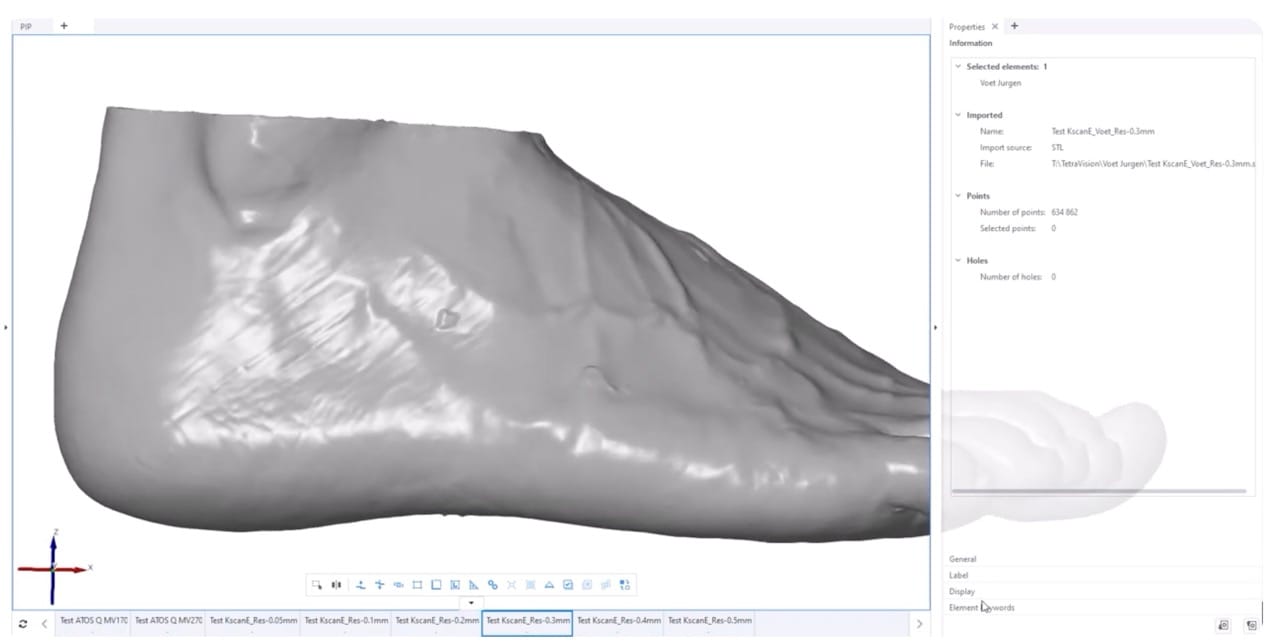
To view our analyses in the *.zinspect format, you need either ZEISS INSPECT Optical 3D or ZEISS INSPECT X-Ray, depending on whether you are viewing an optical analysis or a CT analysis containing volume data.
In this blog post, I explain how to install both applications through the ZEISS Quality Suite.
1. Download the ZEISS Quality Suite via this link: portal.zeiss.com
Clicking this link takes you to the following screen:
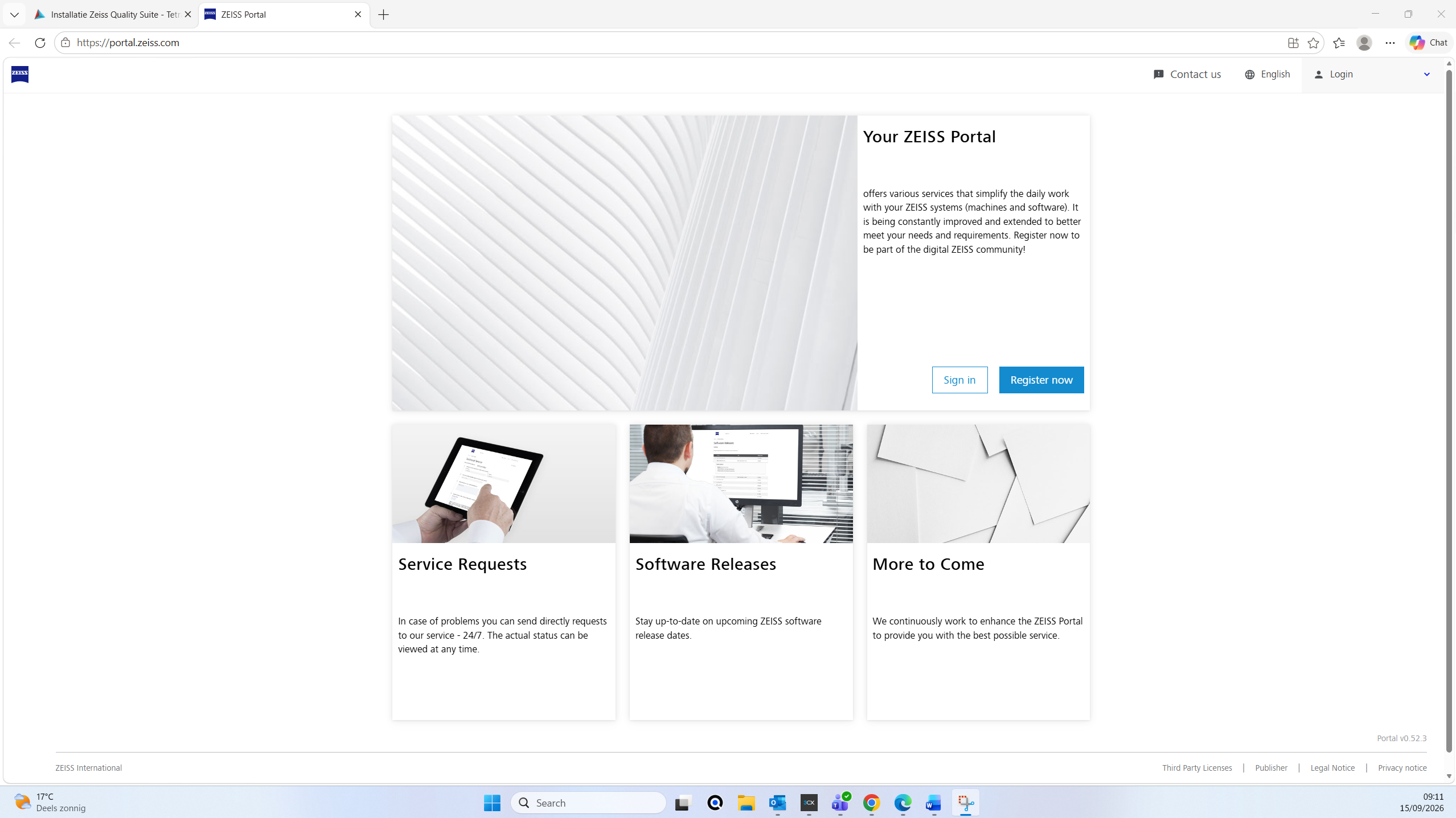
2. Register now.

3. Fill in the required information.


4. After registering, you will receive two emails. In the second email, click the link to verify your email address.


5. After a few minutes, you will receive another email asking you to confirm your registration.

6. Return to the ZEISS portal to download the ZEISS Quality Suite.
- portal.zeiss.com
- You will see the following screen again. Click ‘Sign in’.

7. Sign in.

8. Once you have signed in, you will arrive at the following page, where you can access the Download Center.

9. Go to ZEISS INSPECT and click ‘Show all files’.
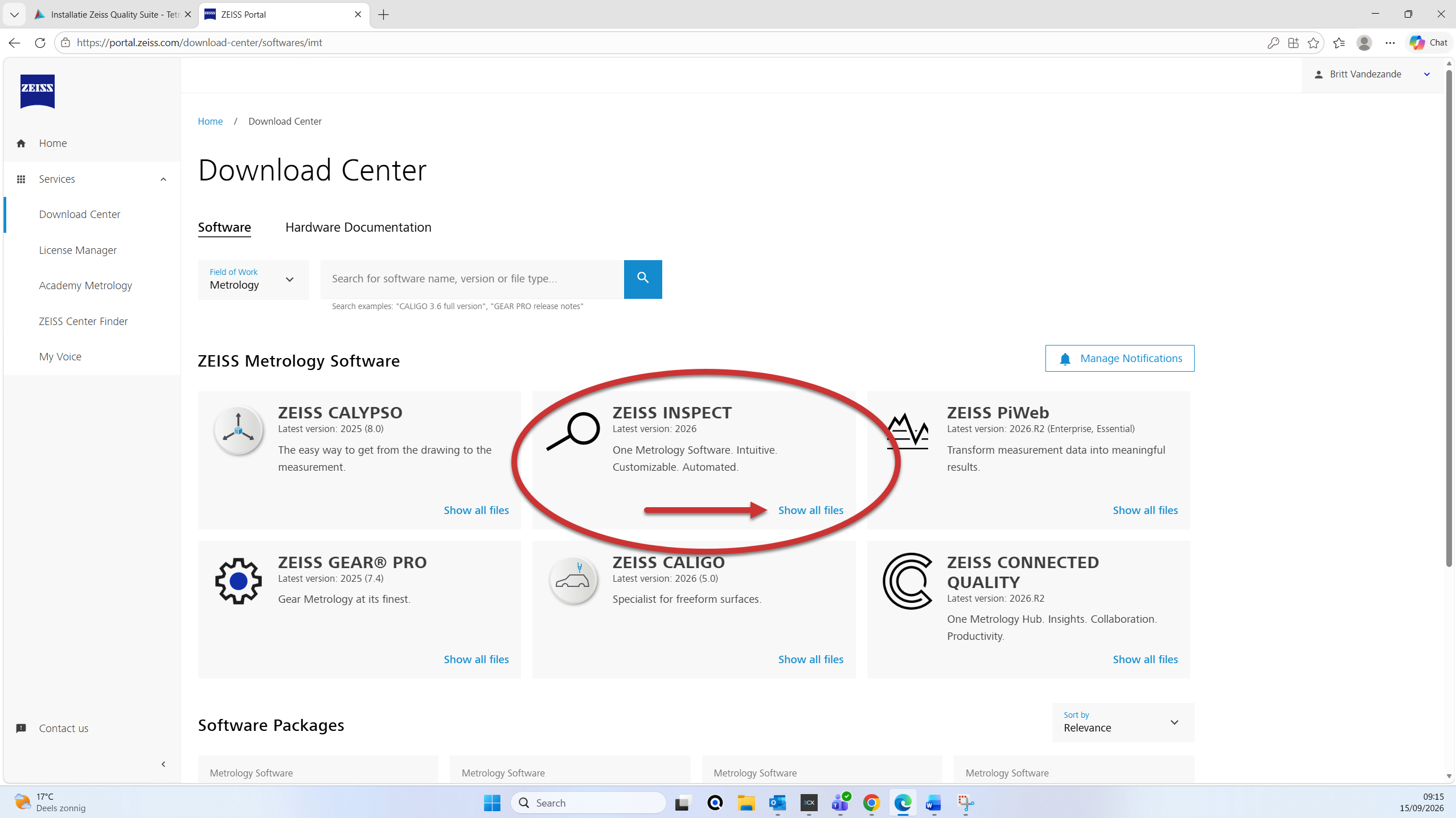
10. Download the latest version, open the downloaded .exe file, and install the software.

11. Open the ‘ZEISS Quality Suite’ application and go to ‘User login’.

12. After signing in, click ‘All applications’.
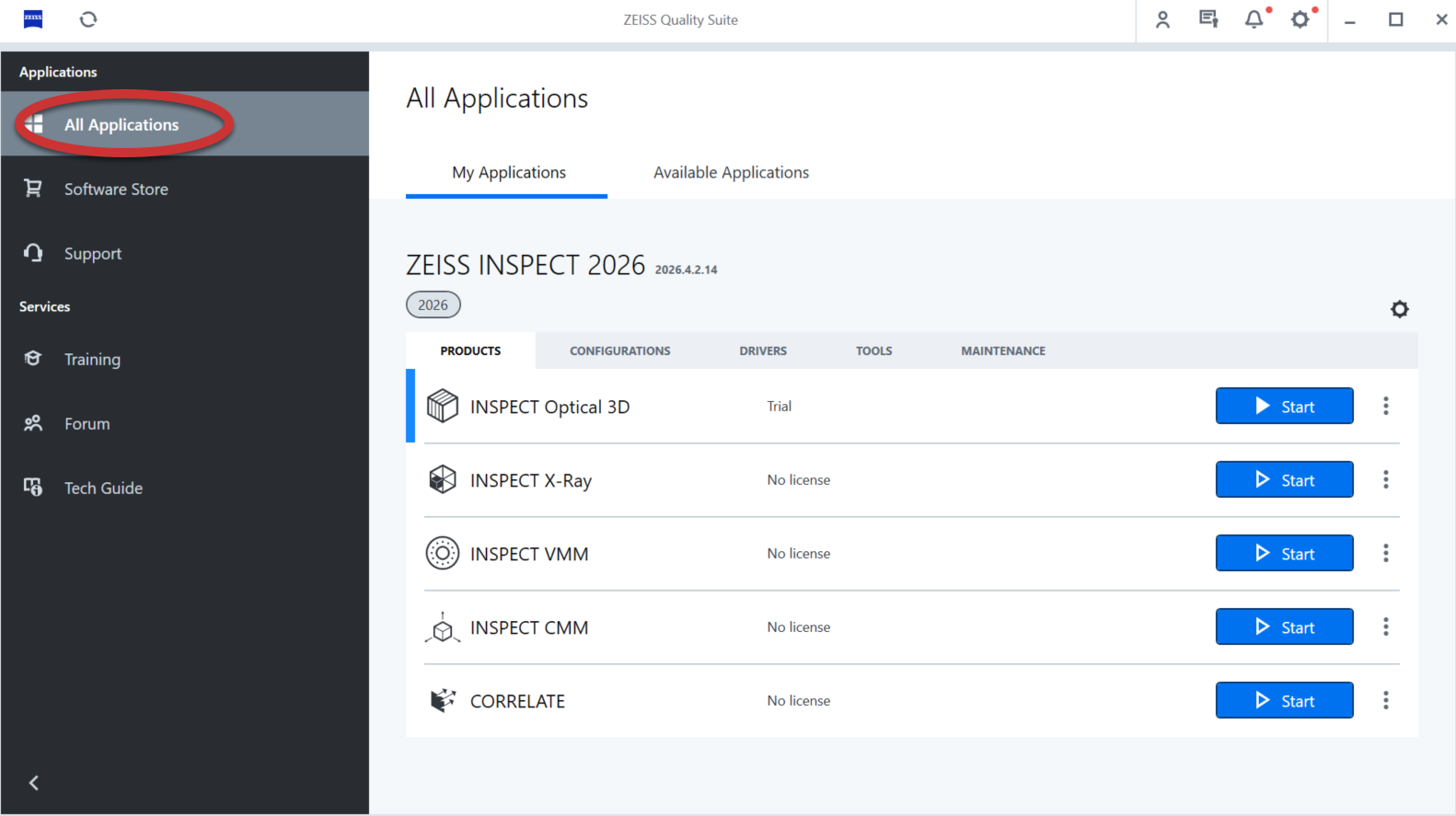
13. Then click ‘Available Applications’.

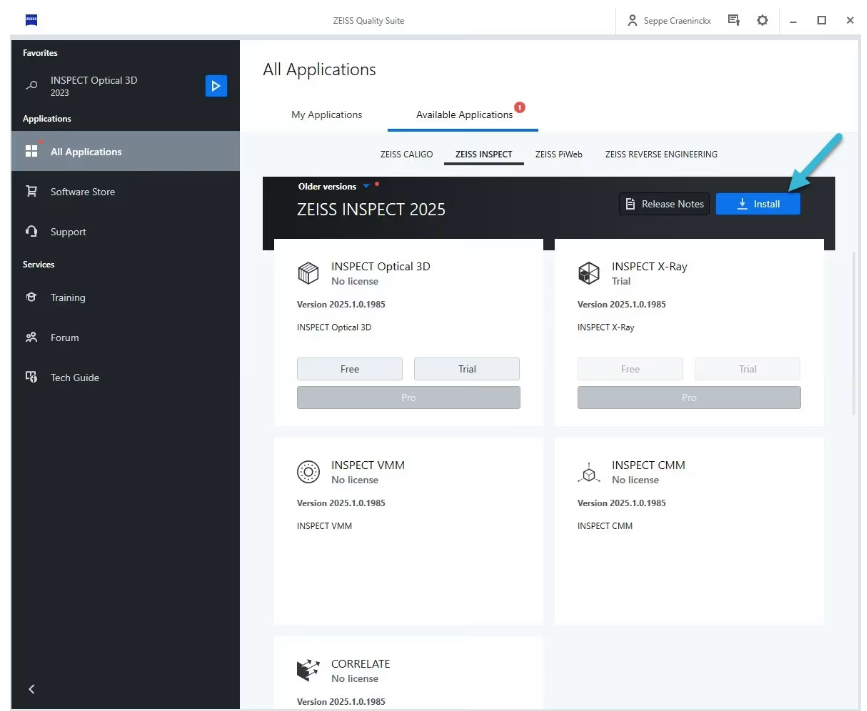
14. Click ‘ZEISS INSPECT’.

15. Click the ‘Trial’ button for the application you need.

16. Accept all terms and conditions and click ‘Try for free’.
17. Click ‘Activate Automatically’ to activate the trial license automatically. The activation status will be displayed. Once activation is complete, click ‘Finish’.
18. The license is now activated, but the software (ZEISS INSPECT) has not yet been installed. Click ‘Install’ to install the latest version of ZEISS INSPECT. You can follow the progress in the top-right corner of the window.
19. An additional window will open to complete the setup. Follow the setup steps to finish installing ZEISS INSPECT.
20. Once installation is complete, you can find the software under ‘All Applications’ and ‘2026’.

21. You can now see that the trial version of INSPECT X-Ray has been activated. Click ‘Start’ to launch the application.
22. When you launch INSPECT X-Ray for the first time, several pop-up windows will appear. You can simply dismiss them or accept the prompts.
23. You can now drag .zinspect files into the application window and start your analysis.