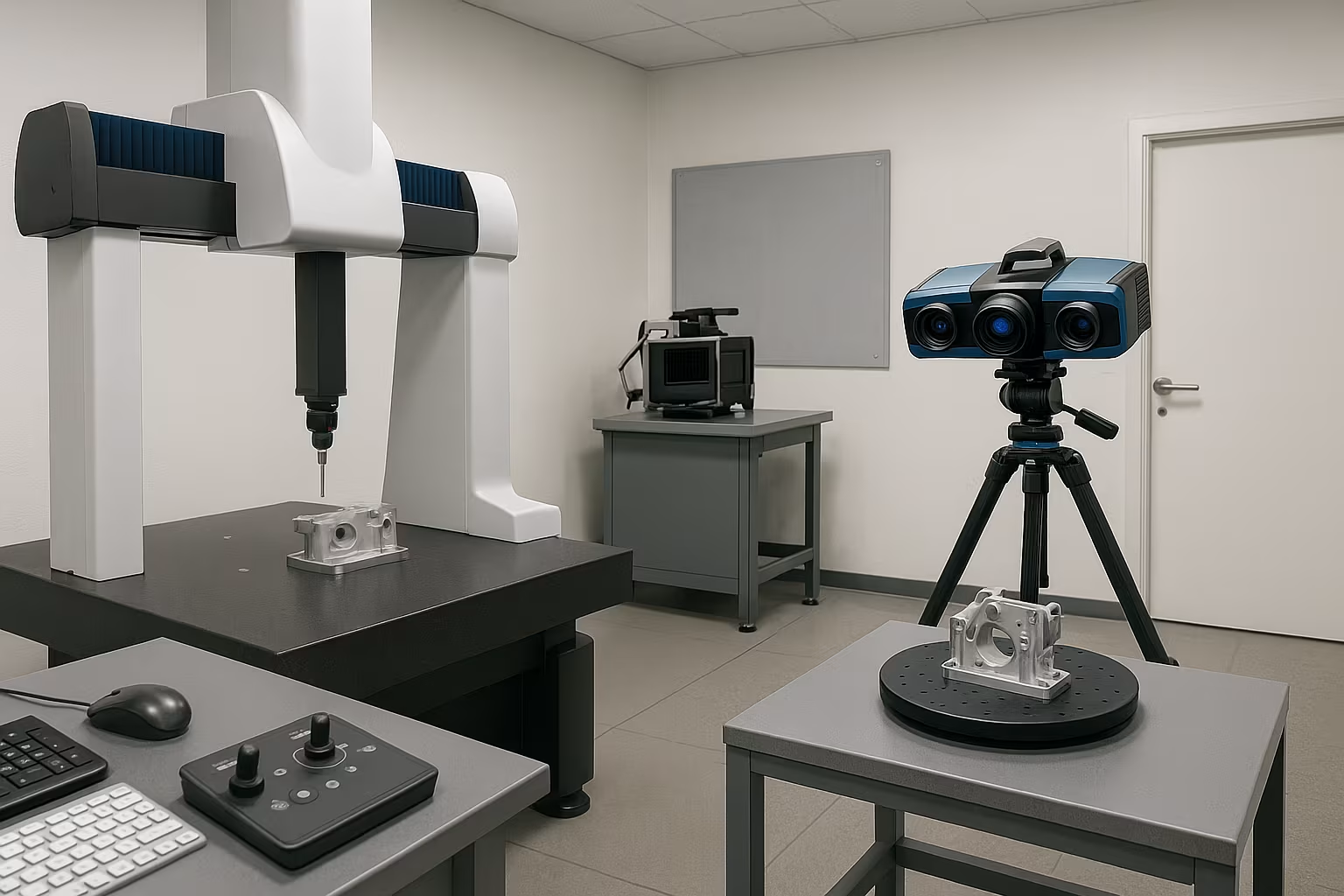
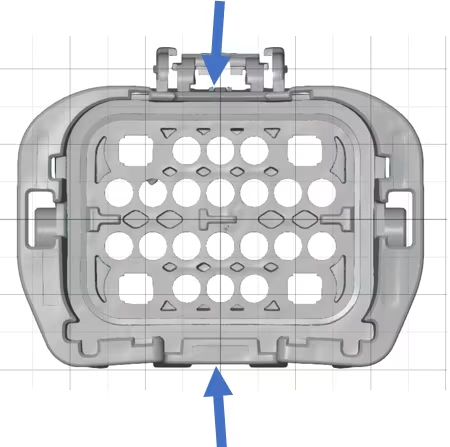
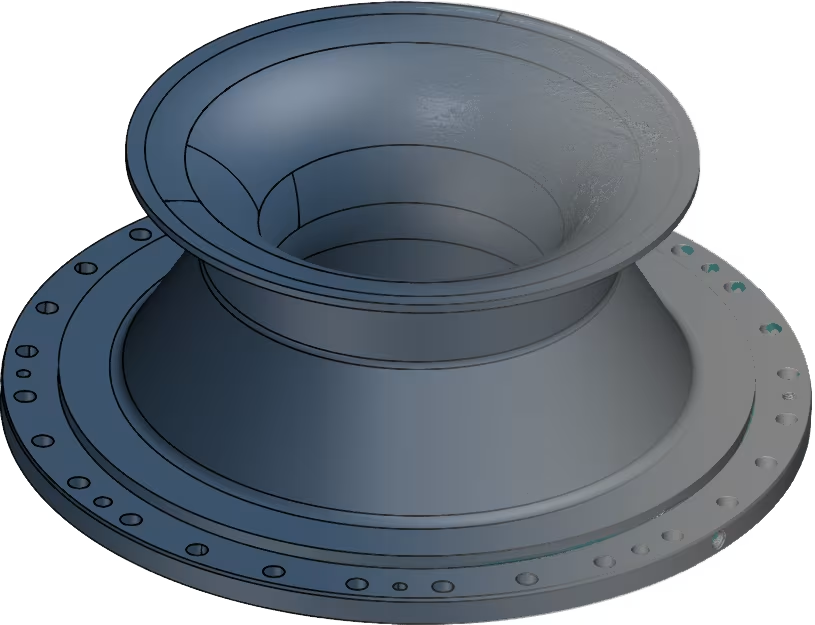
To view our analyses in the *.zinspect format, you need either Zeiss Inspect Optical 3D or Zeiss Inspect X-ray, depending on whether it is an optical or a CT analysis with volume data.
In this blog post, I explain how to install both softwares from the Zeiss Quality Suite.
1. Download the Zeiss Quality Suite from the following link: https://zeiss.ly/xpw1
(You may not see the download button right away, scroll down a little bit first).
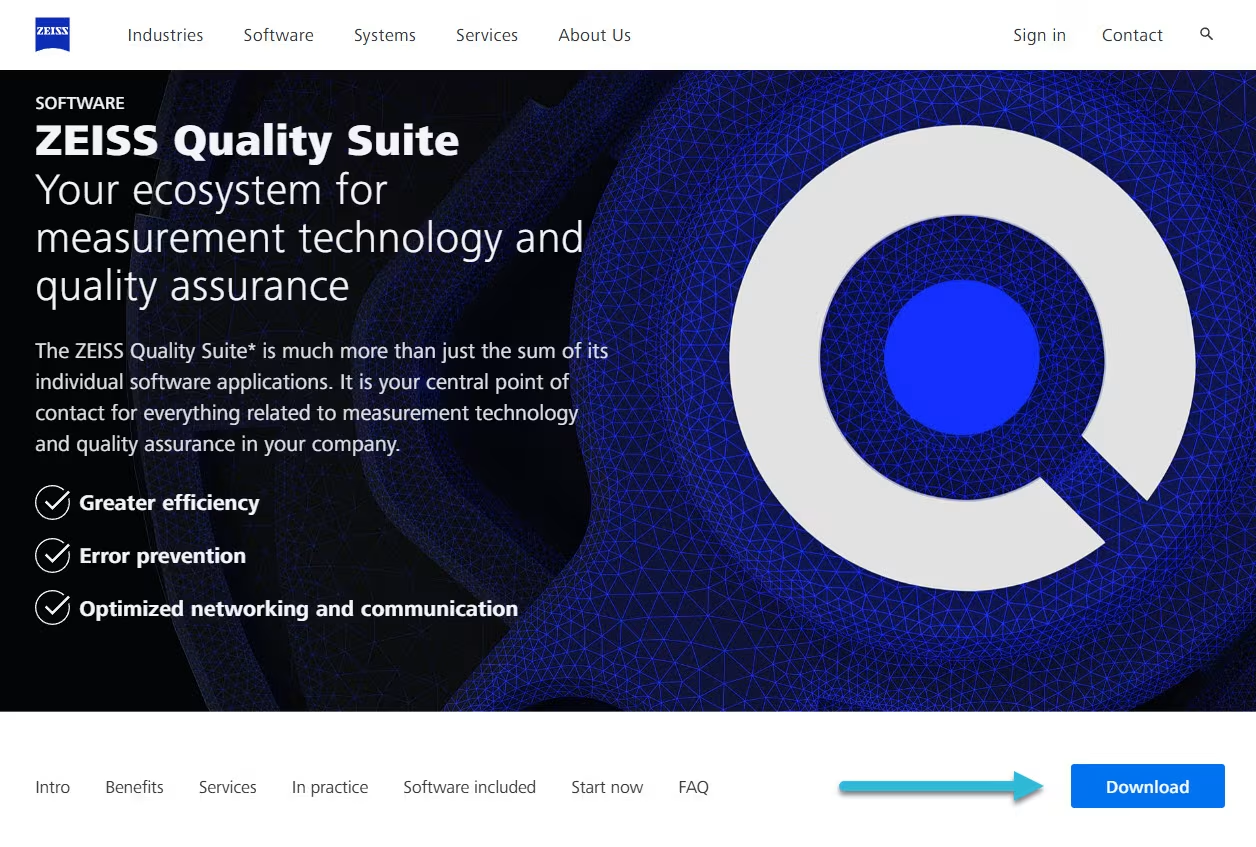
Upon pressing the download button you will be directed to the following screen.
Click download again.

2. Open the downloaded .exe file and install the software.
3. Open the “Zeiss Quality Suite” application.
4. Go to “User Login.

5. Create a new account using ‘Sign Up’ and choose ‘Email Signup’

6. You will then be taken to the screen below, fill in your details and press ‘Create account’.
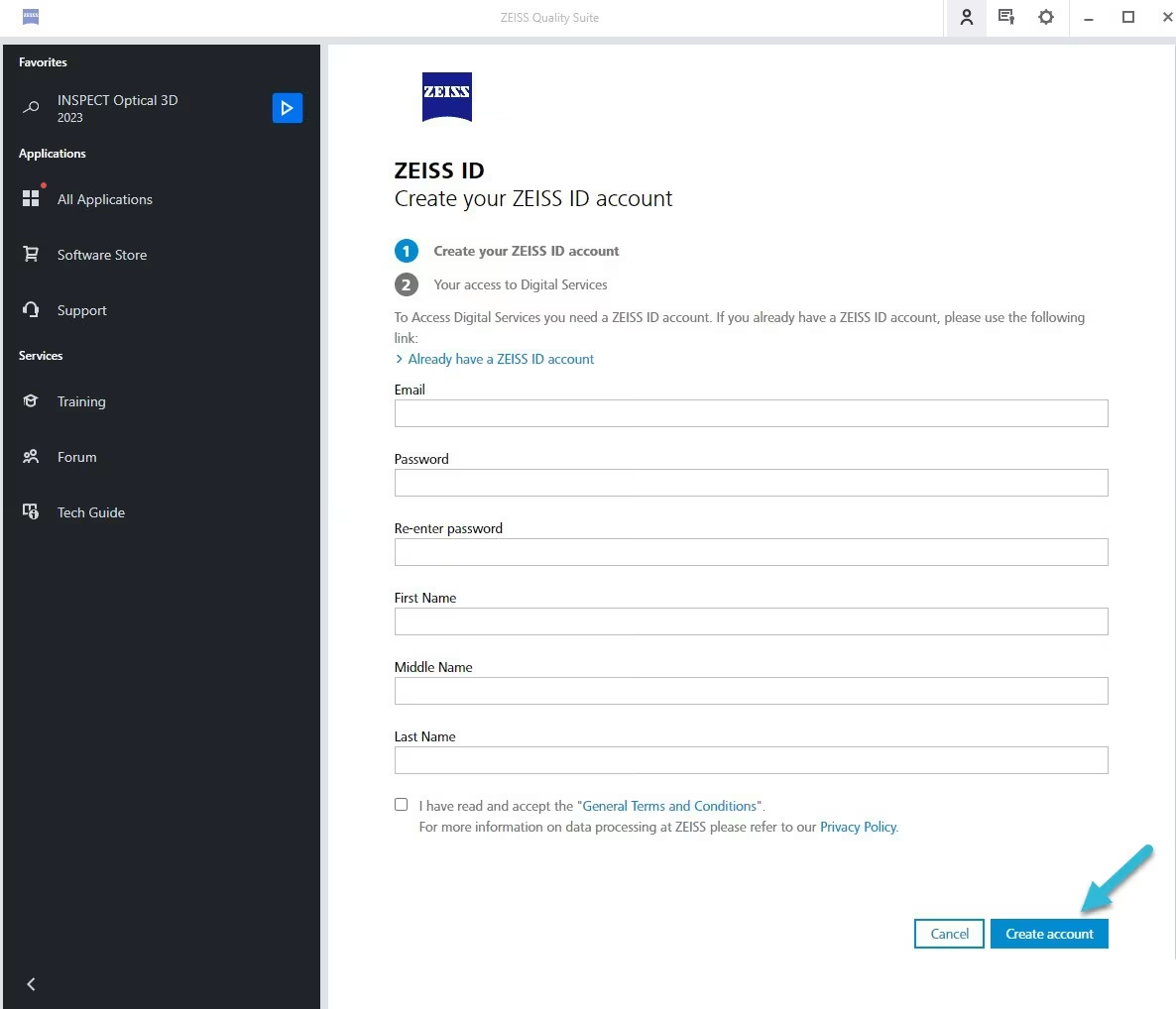
7. After this, you will be redirected to next page, where you have to briefly fill in some information related to your business. Fill in the required fields and press Complete.

8. You will now receive an email to verify your account. Go to your mailbox and press the ‘Verify your e-mail address’ link to confirm your account.
9. Once your email is confirmed, you can log into the Zeiss Quality Suite. Using the same icon from step 4.
10. Once logged into Quality Suite, Click on “All Applications.

11. Then click on “Available Applications” and immediately after that on “Zeiss Inspect.
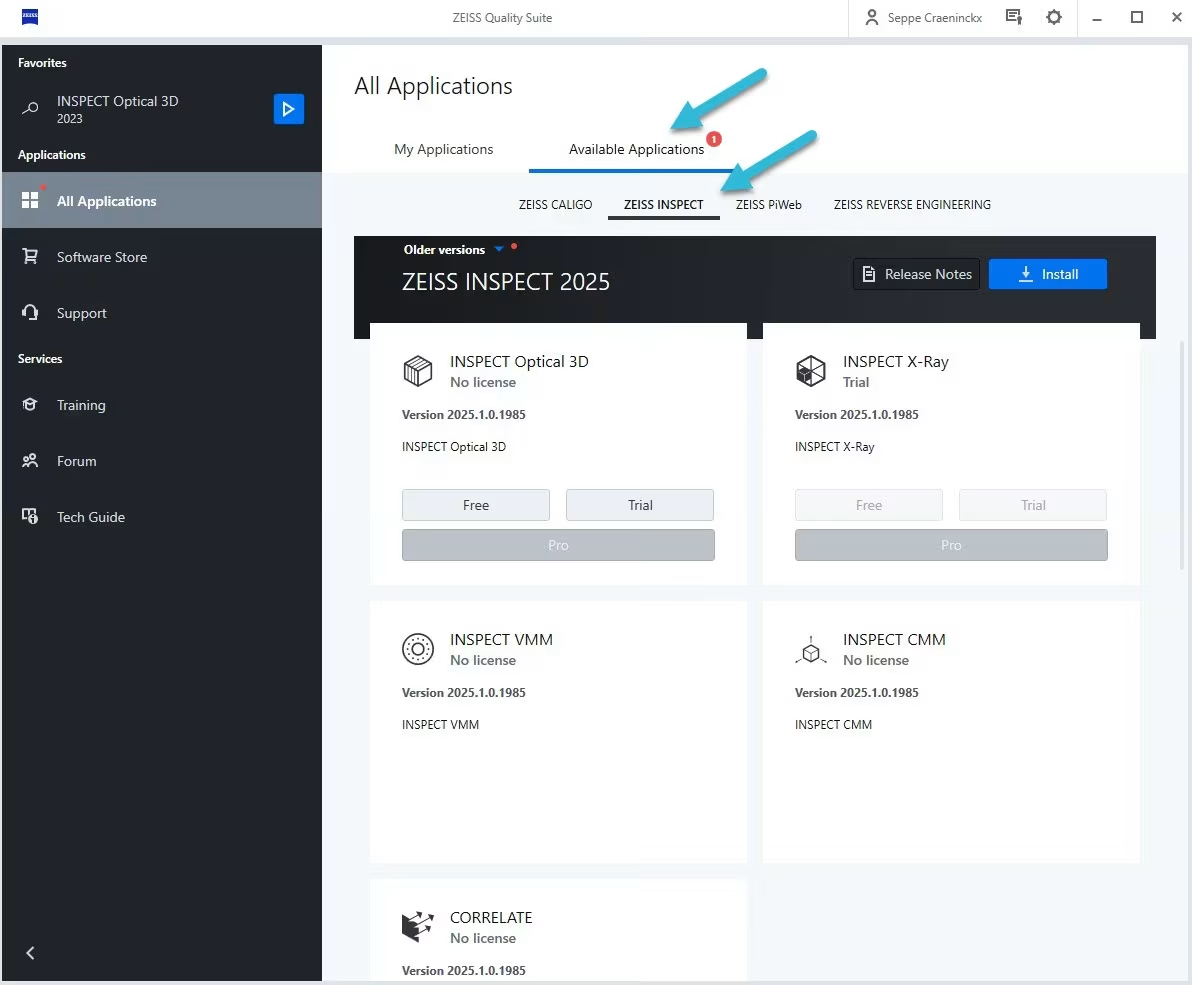
12. With your user, you can now request the “Trial” version of “Inspect X-Ray.

13. Accept all terms and conditions and click “Try for free.
14. Click ‘Activate Automatically’ to activate the trial license automatically. The status of the activation will be displayed. When it is complete press ‘Finish’.
15. The license is now activated but the software (Zeiss Inspect) is not yet installed. To do this, press ‘Install’. This will install the latest version of Zeiss Inspect. (Progress can be tracked in the upper right corner of the window).
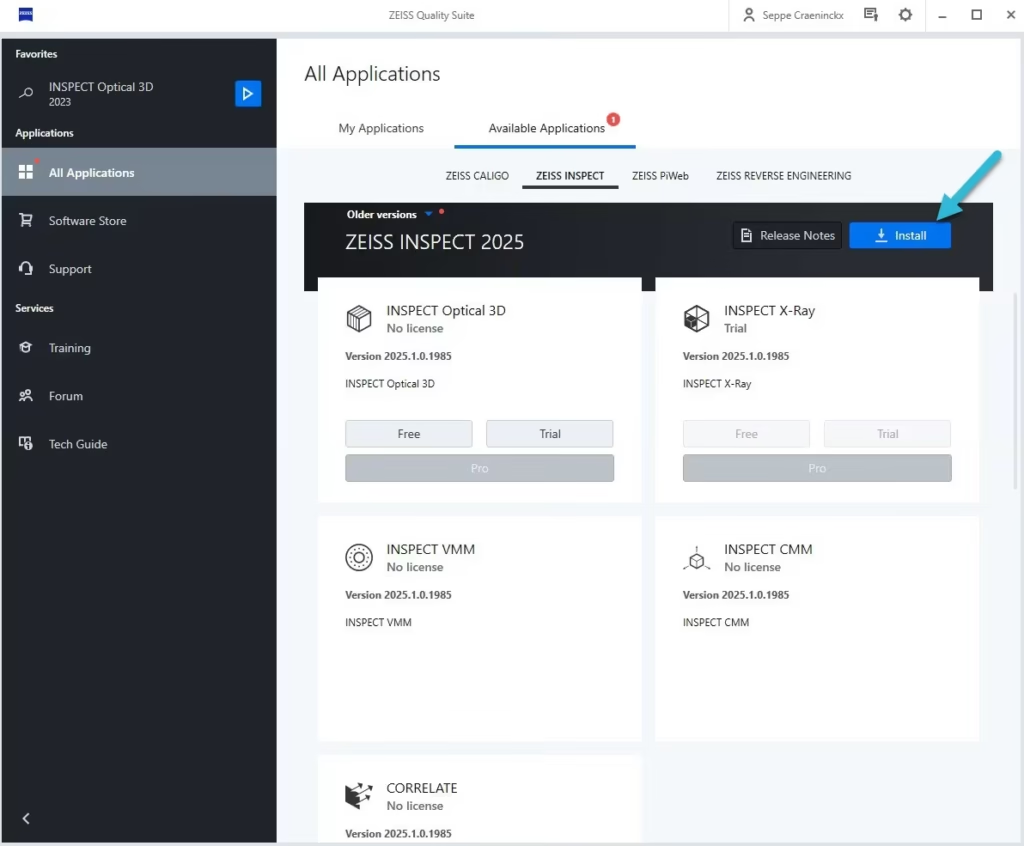
16. You will be redirected to an additional window to complete the setup. Go through the setup to fully install Zeiss Inspect.
17. Once the installation is complete, you can find the software under ‘All Applications’ and ‘2025’.

18. You can clearly see that Inspect X-Ray has activated the trial version. So you can now use it by clicking ‘Start’.
19. At the initial start of Inspect X-Ray, some pop-up windows will appear, you can just click/accept these.
20. You can now drag .zinspect files into the program window and begin the analysis.
More detailed information about the Zeiss Inspect software can be found in the following series of videos: